You open a chat, and the messages in it are fresh, they only just arrived, but where a photo should be there is a blurry smudge. A round video from a friend won't start, and a video spins its ring and goes nowhere. You have already switched from Wi-Fi to mobile data and back, maybe even cleared the cache. And search keeps giving you the same advice: change the network, delete everything, reinstall and get a VPN, quite often the very one sold by the site where that advice is written.
First look at the top of the screen. If it says "Connecting..." or another label about the connection, then it's not only files that fail to load, it's everything, and you are better off with the guide to why Telegram isn't working. What follows is about a different case: there is no label, the chat is alive, and only photos, videos and round videos get stuck.
Let me say up front that we sell a proxy for Telegram ourselves, so on a topic where everybody recommends a VPN I'm not a disinterested party either. But a proxy has nothing to do with photos and videos in far from every case, and we come up only at the very end. As for what is going on, the file that got stuck usually gives you the hint.
An arrow on a photo means Telegram isn't even downloading it
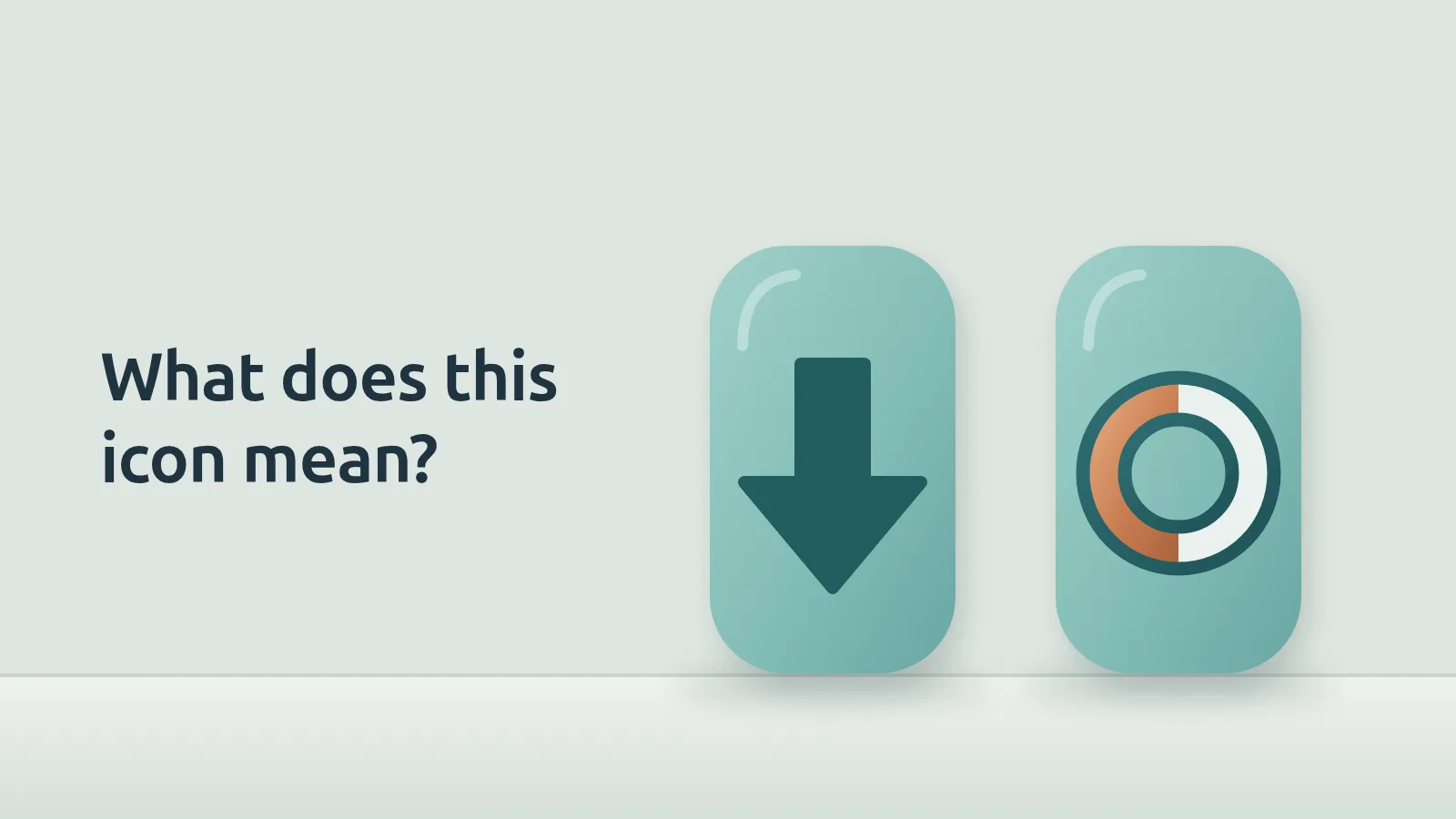
I looked in the code of Telegram for Android at what gets drawn on a photo or video that isn't on your phone yet. A downward arrow appears when Telegram is not downloading the file right now and is waiting for you to tap it: auto-download didn't fire for it, or the download was cancelled. A cross inside a ring is drawn when the download is running or about to start, and the ring fills up as the file comes in. How the same states look on iPhone and in Telegram Desktop, I haven't checked.
So if a file has an arrow, simply tap it. If the photo downloads and opens, the network is fine, and auto-download was what held it back.
Auto-download isn't decided by one switch. Telegram for Android looks at which network your phone is on right now (mobile, Wi-Fi or roaming), where the file comes from (a contact, a private chat, a group or a channel) and how big it is. It downloads photos by itself if they are enabled for that type of chat, and size doesn't matter there, while videos and files are downloaded only up to the limit set in the settings. That is why a picture can arrive without any trouble in a private chat and still sit there with an arrow in a channel.
Round videos have a catch of their own. For auto-download, Android puts round videos, GIFs and ordinary videos into one category, video, while stickers go together with photos. So if video is switched off for groups on mobile data, round videos from people who aren't your contacts won't download by themselves in groups, even though voice messages next to them keep arriving as if nothing were wrong. Telegram downloads voice messages by itself, with no separate checkbox, and the settings explain that they are tiny.
By default the sets differ from network to network: on Wi-Fi Telegram downloads the most by itself, on mobile data less, and in roaming the least. Telegram's server can also send its own values for these sets, so only the settings screen will show what is switched on on your particular phone. If you travel a lot, that is worth a look: the set for roaming is separate from the one for mobile data.
And here is where the settings live:
- On Android: "Settings" → "Data and Storage", where there is a block called "Automatic media download" with separate items "When using mobile data", "When connected on Wi-Fi" and "When roaming". Open the one for the network you are on now, and check whether video is enabled for the type of chat you need and what the size limit is. The same screen has a "Reset Auto-Download Settings" button.
- On iPhone the path is the same, "Settings" → "Data and Storage", but the auto-download block, "AUTO-DOWNLOAD MEDIA", has only two items, "Using Cellular" and "Using Wi-Fi". There is no separate roaming item, and there is a "Reset Auto-Download Settings" button.
- In Telegram Desktop it's "Settings" → "Advanced", and the "Automatic media download" block there is split into private chats, groups and channels. It also lets you set exceptions, to always or never auto-download for chosen people, groups and channels.
In Desktop, round videos, videos and GIFs live in another part of the same window: where you decide what to play automatically, while for automatic downloading it offers photos and files with a size limit. If it's specifically round videos that won't start on your computer, that is where I would begin.
The ring spins but hardly moves
If a file shows a cross inside a ring, Telegram is already trying to download it, and the auto-download settings have nothing to do with it. Telegram's developer documentation says that the app pulls large files over separate connections, often from servers that handle only media, and messages don't travel over those connections. So the chat can go on living its own life while a file in it stands still, and from the outside it's usually impossible to see why that particular part gets stuck.
The simplest thing is to compare networks. Switch from mobile data to Wi-Fi or the other way around and open the same file. Say hotel Wi-Fi gives you a ring that doesn't move, but on mobile data the file comes down. With the same auto-download settings, that means the cause is the network, or the route from it to Telegram's servers, not your phone's settings.
If you have a proxy or a VPN turned on, switch it off for a minute and try the same file without it. A proxy being listed as connected and showing a ping only speaks for the main connection, and tells you nothing about files. There is more on this in the guide to a connected proxy and Telegram still not working, and a separate one on VPN.
Some things also don't depend on your phone at all. Wikipedia collects media reports that since February 2026 the restrictions on Telegram in Russia have hit exactly media: voice messages, video and images. How to tell that apart from a problem on your own phone is covered in the same general article about Telegram not working, in the section "How to tell it's not your phone".
Sometimes the ring isn't stuck but crawling, especially on a big video. Here you should know that without Premium, Telegram itself limits the download speed. In the description of Premium it promises subscribers outright that there will be no more limits on the speed with which media and documents are downloaded. Android may also say so in the downloads list: "Download speed limited", with an offer of Premium next to it. If the video player has a choice of quality, you can pick a lower one, and then there is less to download.
The data saving modes built into the phone can also hold Telegram back, and there are separate articles on them for Android and iPhone.
When storage or the download folder gets in the way
Sometimes a photo was there, you looked at it, and now it's blurry again. Telegram itself can do that. In "Storage Usage" on Android there is a setting for how long to keep media: photos, videos and files from cloud chats that you haven't opened for longer than the chosen period are removed from the phone. The same screen holds a limit on the cache size, and when the cache outgrows it, Telegram removes the oldest media. No need to panic: the same setting says that everything stays in the Telegram cloud and can be downloaded again.
You clear the cache from inside Telegram: "Settings" → "Data and Storage" → "Storage Usage" → "Clear Cache". But the clear storage button in Android's app info, and advice to delete the app's data, I would steer clear of. For Telegram on a phone that means logging out of your account, and secret chats are lost when you do. On a computer, deleting the tdata folder works the same way. More in the article about Telegram on Android.
On a computer there is one more cause. If you once picked your own download folder in Telegram Desktop and it has since become unavailable, the program can't write a file there. Desktop then says itself that the download could not be started and that the selected download location may be invalid, and it goes back to the default folder. If a download broke off halfway, it asks whether you want to try again.
The file downloaded, but there's nothing to watch
The ring went all the way, the file is downloaded, and yet the video won't play or the photo won't show. That has nothing to do with the network anymore. On Android, Telegram itself says in this situation that the app was unable to play the video, and offers to open it in an external player. It's worth agreeing: if the video plays in another player, the download was fine, and it was the built-in player that couldn't cope.
On Windows you can play with the graphics. In Telegram Desktop, "Advanced" has a performance block with a switch for hardware accelerated video decoding and a choice of ANGLE graphics backend: Auto, Direct3D 11, Direct3D 9, D3D11on12 or Disabled. Try turning off hardware decoding or choosing a different backend. After you change the backend, the program will ask to restart. I won't promise anything here. In the comments under one guide on this, it helped some people and didn't help others.
Where our proxy comes in
Since I admitted at the start that I sell a proxy, I'll tell you about it too. If you are on a proxy, any proxy, and messages go through while files stand still, first compare with the proxy turned off or with a different one, as in the section about the ring. I'm not promising that photos and videos will load faster with our proxy: we haven't measured download speed through it. Our proxy passes only Telegram through itself, while the browser and other apps go online directly, as usual.
Each device has its own link. If someone else has seen it, you change it in your account with one tap, and the old one stops working at once. We can't see your chats, because Telegram encrypts messages before they reach the proxy. If you change your network or your phone, the link works right away, with no waiting. The link works in the official Telegram apps for iOS, Android, Windows, macOS and Linux, and Telegram Web doesn't support proxies.
If you'd like to try it, 1 day is free after you sign up and confirm your email, with no payment and no phone number, and nothing is charged by itself afterwards. After that it's $1 for 30 days or $2.50 for 90 days. The price is per device, so if you need it on both a phone and a computer, choose 2 when you buy. Auto-renewal is off by default. It's all on freegate.app.